Dataset viewer
plaid-viewer is a small web application for opening a PLAID dataset and
looking at its samples in 3D. It is meant for exploration: choose where the
data comes from, choose what part of the sample you want to see, then inspect
the mesh and fields interactively.
Start the viewer
From a terminal, run:
From a uv-managed development checkout, use uv run plaid-viewer instead.
You can also start directly from a local datasets folder:
Then open the address shown by the command, usually:
Useful launch options:
| Option | What it does |
|---|---|
--datasets-root /path/to/datasets |
Opens a local folder containing PLAID datasets. |
--hub-repo namespace/name |
Adds a Hugging Face Hub dataset to stream. Can be repeated. |
--host 0.0.0.0 |
Makes the viewer reachable from another machine. |
--port 8080 |
Changes the web server port. |
Follow the steps in the side panel
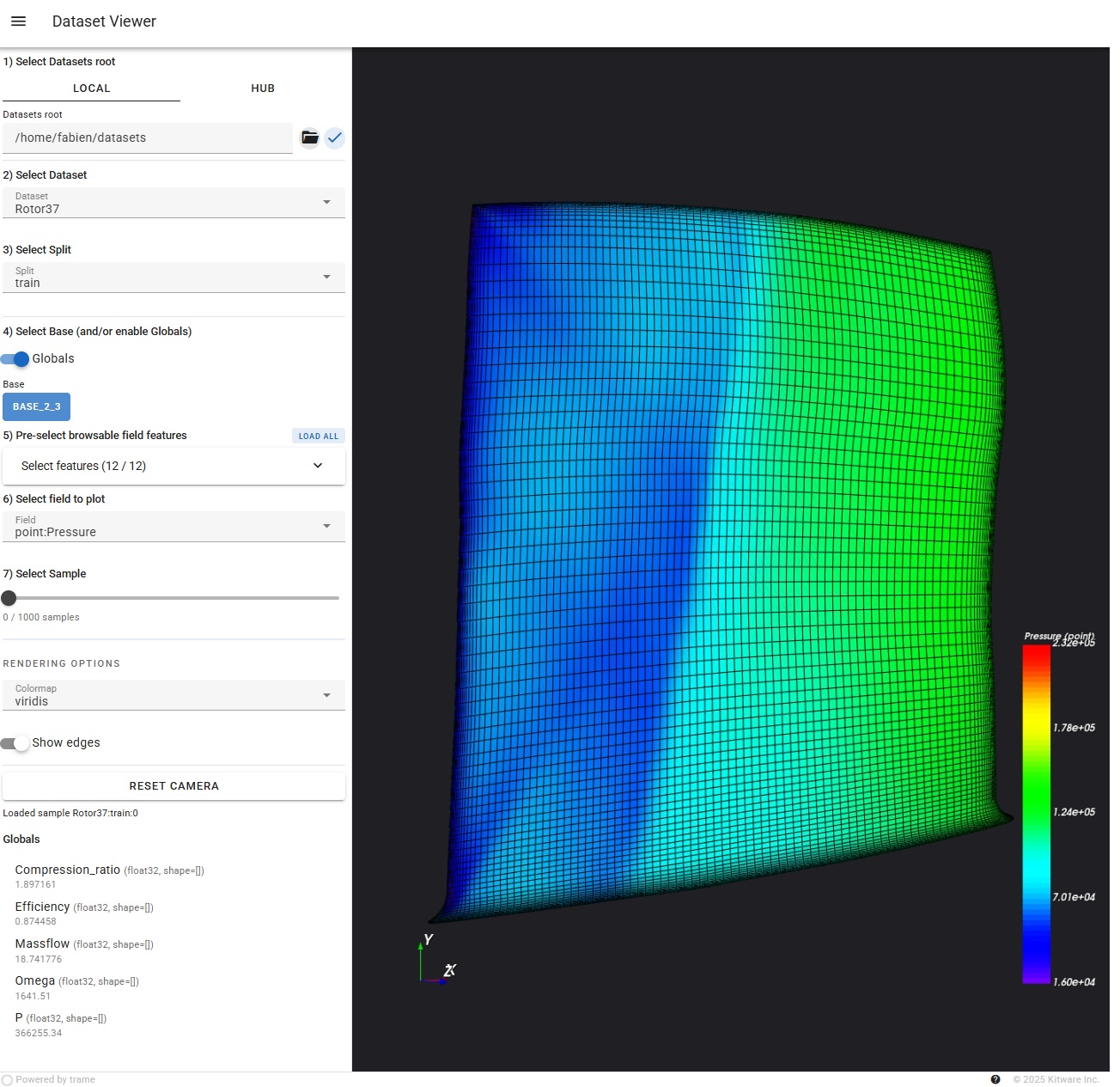
The left panel is numbered in the same order as a typical workflow.
1) Select Datasets root
Choose where the datasets come from.
- Local: enter the path to a folder on your computer. You can also click the folder button to browse, then validate with the check button.
- Hub: enter a Hugging Face Hub repository name such as
PLAID-lib/VKI-LS59, then click the plus button. Added Hub datasets appear as chips and can be removed from the same area.
If you started the viewer with --datasets-root or --hub-repo, this step may
already be filled in.
2) Select Dataset
Pick the dataset you want to inspect.
The list depends on the tab selected in step 1: local datasets are shown on the Local tab, while streamed Hub datasets are shown on the Hub tab.
3) Select Split
Choose the dataset split, for example train, test, or any other split
provided by the dataset.
4) Select Base (and/or enable Globals)
Choose which high-level part of the sample to load.
- Click a Base button to display the mesh for that base.
- Enable Globals if you want to load and display global values associated with the sample.
By default, the viewer starts light: it does not load every field immediately. Pick a base and/or enable globals first, then choose fields in the next steps.
5) Pre-select browsable field features
This step is shown when the local dataset exposes selectable fields.
Use it to choose which fields should be loaded for the selected base. This is useful for large datasets because you can avoid loading everything at once.
- Click Load all to load every available field for the current selection.
- Expand Select features to tick only the fields you need.
- Click Apply after changing the checked fields.
- Click Clear to uncheck the current selection.
For streamed Hub datasets, this panel can be hidden because samples are loaded progressively from the stream.
6) Select field to plot
Choose the field used to color the 3D view.
If no field is selected, the viewer still shows the mesh, but without scalar coloring. When a field is selected, a color legend appears in the 3D view.
7) Select Sample
Choose which sample to display.
- For local datasets, use the slider to move through the available samples.
- For streamed Hub datasets, click Next to fetch the next sample. Streaming is forward-only: the viewer loads samples one after another instead of knowing the full list in advance.
The label under this control shows the current sample id, number of samples, or streaming status.
Time-dependent samples
If the selected sample contains several time steps, a Time slider appears under the sample selector.
You can:
- move through time with the slider;
- press play/pause to animate the sample;
- press stop to go back to the first time step;
- toggle loop playback;
- adjust the playback FPS.
Rendering options
The controls below the thick separator only change how the current sample is drawn. They do not change which data is loaded.
- Colormap changes the colors used for the selected field.
- Show edges overlays mesh edges.
- Reset camera recenters the view after you rotate, pan, or zoom.
Interacting with the 3D view
Use the mouse directly in the 3D area:
- left mouse button: rotate;
- middle mouse button, or
Shift+ left mouse button: pan; - mouse wheel, or right mouse button drag: zoom.
The small axes marker in the corner helps you keep track of the orientation.
Local datasets and Hub datasets
The viewer can open data from two places:
- Local datasets are read from disk and can usually be accessed in any order. The sample control is therefore a slider.
- Hub datasets are streamed from Hugging Face Hub. This avoids downloading the full dataset first, but samples are consumed forward with the Next button.
When streaming is active, a streaming chip appears in the toolbar.
Troubleshooting
Viewer tips
- If the 3D view is empty, first select a Base in step 4.
- If the field dropdown is empty, load fields with Load all or by selecting features in step 5.
- If the viewer feels slow on a large dataset, load only one base and a small number of fields.
- The message at the bottom of the side panel reports the latest action or error.